
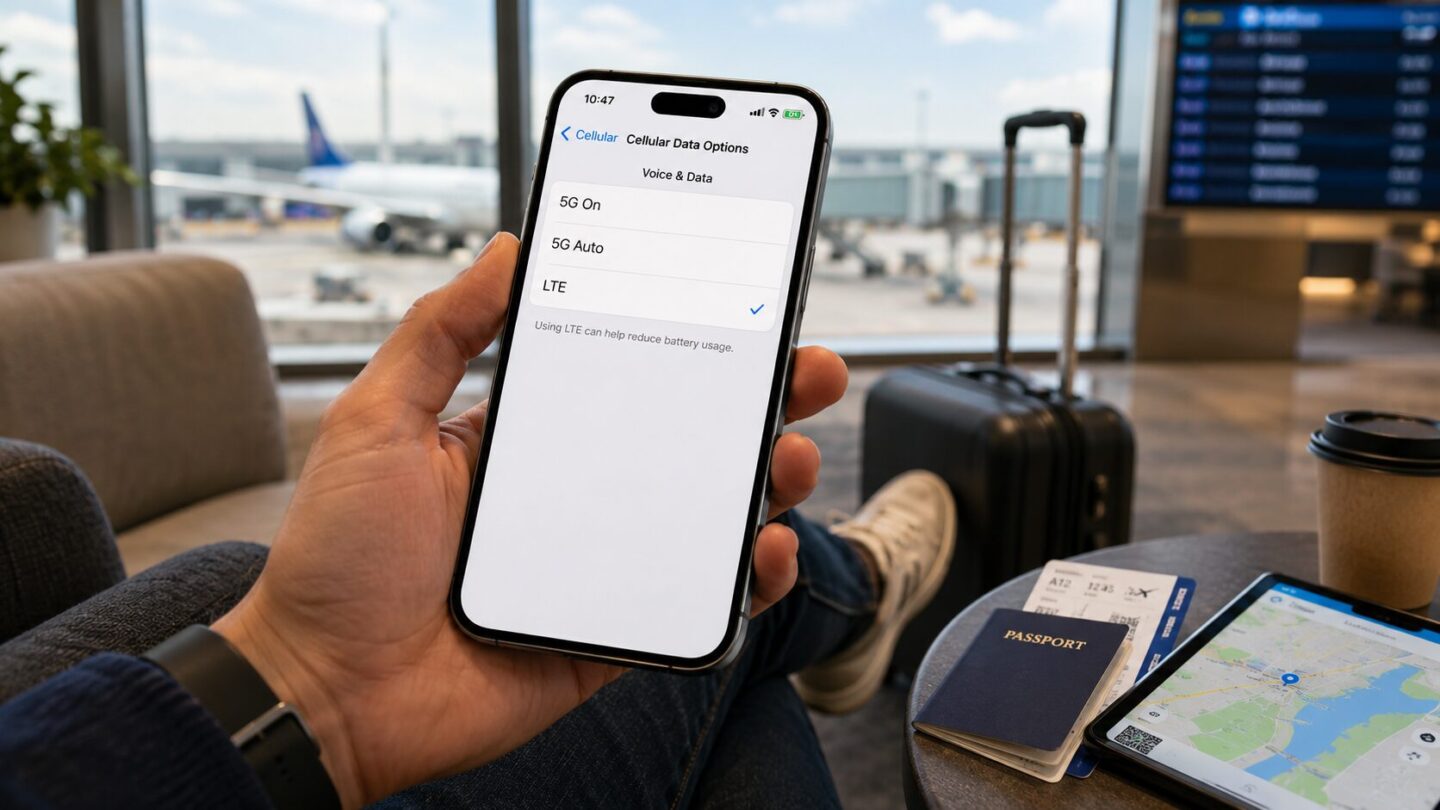
I live out of a carry-on, and my phone is my lifeline for maps, translations, and content. So when 5G eats my battery by lunch, I switch it off. Apple made the iPhone 12 its first 5G phone back in October 2020, and every model since defaults to 5G. Here is exactly how to turn off 5G on your iPhone, and when you actually should.
The fastest way to turn off 5G on iPhone
You do not need an app or a carrier call. The setting lives inside your cellular menu, and it takes about four taps. Here is the path I use on the road.
- Open the Settings app.
- Tap Cellular (it may read Mobile Data in some regions).
- Tap Cellular Data Options.
- Tap Voice & Data.
- Select LTE to switch 5G off.
That is it. Your iPhone now runs on 4G LTE until you change it back. To turn 5G on again, return to the same screen and pick 5G On or 5G Auto.
What each 5G option really means
The Voice & Data screen gives you three choices, and the names are not obvious. Knowing the difference saves you battery without killing your speed.
- 5G On: Uses 5G whenever it is available, even when it drains more power. Fastest, hungriest.
- 5G Auto: Uses 5G only when it will not noticeably hurt battery life. This is Apple’s Smart Data Mode.
- LTE: Turns 5G off completely and keeps you on 4G. Best for battery.
If your goal is longer battery life, LTE wins. If you want a balance, 5G Auto is the smart middle ground.
Why turn off 5G on your iPhone at all?
5G is the fifth generation of mobile network technology, built for faster speeds and lower lag. It is genuinely great for streaming and big downloads. But it comes with trade-offs that matter when you travel.
First, battery. 5G radios work harder to hold a signal, so heavy 5G use can shorten your day. Switching to LTE is one of the simplest ways to stretch a charge.
Second, coverage. In rural areas and many older buildings, 5G flickers on and off, which forces your phone to keep searching. Locking to LTE gives you a steadier connection. I learned this the hard way during a countryside tasting trip, a story I unpack in my notes on planning a wine-centered trip.
The setting that matters most abroad: Data Mode
Inside Cellular Data Options you will also see Data Mode. This controls how much data your apps use, and it is a lifesaver overseas.
Choose Low Data Mode to pause background refreshes and reduce automatic updates. Paired with LTE, it keeps your bill and your battery under control. My full packing and tech routine lives in my roundup of travel essentials I never leave home without.
Staying connected in Europe without the roaming shock
Turning off 5G helps at home, but overseas the bigger question is data itself. On my last swing through Spain and Portugal, I skipped the roaming fees entirely and used an eSIM, a digital SIM you activate from your phone with no plastic card.
For Europe I used Holafly, which let me land, connect, and post before I even reached baggage claim. It kept my regular number free for calls while data ran on the eSIM. If you are heading to wine country, my guide on why the Douro Valley and Rioja are must-visit destinations pairs nicely with a data plan that actually works when you arrive.
One tip from experience: an eSIM often runs on LTE just fine, so keeping 5G off abroad rarely costs you anything noticeable. You still get maps, messaging, and uploads without the drain.
Frequently asked questions
Does turning off 5G save battery on iPhone?
Yes. Switching from 5G On to LTE reduces how hard your radio works, which can meaningfully extend battery life on a busy travel day.
Which iPhones can turn off 5G?
Every 5G-capable iPhone, starting with the iPhone 12, includes the Voice & Data menu. Older models without 5G will not show these options at all.
Will turning off 5G slow down my internet?
On LTE your top speed drops compared to 5G, but 4G is still fast enough for maps, streaming, and social uploads in most places.
Should I use 5G Auto instead of turning 5G off?
If you want speed and battery balance, yes. 5G Auto uses 5G only when it will not harm battery life, so it is a smart default for many travelers.
Can I turn 5G back on later?
Anytime. Go back to Settings, Cellular, Cellular Data Options, Voice & Data, then choose 5G On or 5G Auto. The change is instant.
Small settings make a big difference when you are on the move. Turn off 5G when you need the battery, flip it back on when you crave speed, and travel with data you can actually rely on. For more of my on-the-road picks, browse my journey through European wines.
